Decals Editing Guide
For some of my decals products, such as the freight wagon plates and markings, you can change various aspects of a selected basic decal to make it fit your requirements. This page gives full details of how to specifiy the changes you want to make.
Notation
On this page I use a number of notation conventions to identfy items within a description of an instruction or command:
- Square brackets ([...]) are used to enclose a description of an item, rather than its actual value. Replace the entire item, including the brackets, with your value.
- Parentheses ((...)) are used to enclose an optional item, or part of an item, that can be omitted. Either enter only the part of the command outside the brackets, or enter the full command without the brackets.
- Command words are identified in bold, and should be entered as shown, unless containing optional sections. You can however use upper or lower case letters as you wish.
- Vertical bar characters (|) are used to separate alternatives for which only one at a time should be used.
- An exclamation mark (!) is used to mark the start of an instruction or command to me, and remains in effect for the rest of the line on which it is used.
Text Replacement
In many cases simply giving the new text (or number) will be sufficient for me to identify what you want to change, and what the new value should be. Please include any punctuation marks needed in your new text. To make your instructions clearer you can used the following forms:
[original text] -> [new text]; e.g. 12345 -> 54321
When quoting a length of original text to be replaced you can use ellipsis (...) to link short lengths of the text at the start and end of the entire text. The new text has to be entered in full. e.g. 1...5 -> 54321
or
[name of text item] = [new text] e.g. lot number= 1234
To replace all of the text in a decal you can use the command !Replace All on its own line either before or after the new text. e.g.:
| !Replace All [new text] | or | [new text] !Replace All |
Commands
Commands can be entered at the end of the line of text to which they refer, or on a separate line. Multiple commands can be entered on a single line.
- Commands placed on lines below all of your text will apply to the whole decal, including any retained existing text.
- Commands placed on separate line(s) followed by further line(s) of text will apply to all of the following text lines until countermanded by further commands.
- Commands placed at the end of a line of text will apply only to that text line.
Size Commands
| !DS(ize) = [w] x [h] | Specifies the overall size of the decal, as width and height. This determines the separation of the cutting guides. |
| !DW(idth) = [w] | Specifies the overall width of the decal. This determines the separation of the vertical cutting guides. |
| !DH(eight) = [h] | Specifies the overall height of the decal. This determines the separation of the horizontal cutting guides. |
| !PS(ize) = [w] x [h] | Specifies the overall size of the pattern within the decal, as width and height. The cutting guides will be set to give a border around this for touching up. |
| !PW(idth) = [w] | Specifies the overall width of the pattern within the decal. The vertical cutting guides will be set to give a border around this for touching up. |
| !PH(eight) = [h] | Specifies the overall height of the decal. The horizontal cutting guides will be set to give a border around this for touching up. |
| !FH(eight) = [h] | Specifies the font or lettering height of the decal, the height of upper case characters and numbers. For a Small Caps font, this is the height of the larger initial letters. If used at the end of a line of text, the command will apply only to that line. If used on a separate line, it will apply to all following lines of text. |
| !LH(eight) = [h] | Specifies the line height for multi-line decals. This is the height of upper case characters and numbers, plus the space between lines. If used at the end of a line of text, the command will apply only to that line. If used on a separate line, it will apply to all following lines of text. |
The sizes can be given in feet and/or inches to specify the prototype size, or in mm to specify the model size. Please specify the units you are using.
Text Alignment Commands
| !HA(lign) = L(eft) | C(entre) | R(ight) | J(ustify) | Specifies the horizontal alignment of multiple lines within the decal. If used at the end of a line of text, the command will apply only to that line. If used on a separate line, it will apply to all following lines of text, or the whole decal if there is no following text. |
| !VA(lign) = T(op) | C(entre) | B(ottom) | Specifies the vertical alignment of the whole decal pattern within the decal height defined by the cutting guides. |
Character Modification Commands
| !Alt = [list of characters] | Specifies that the alternate form should be used for the specified characters, where provided by the current font. For example, an angular rather than rounded upper part of "3" characters. |
| !Sub = [text] (After [ref text]) | Causes the specified target text to be presented in full subscript form, that is of reduced size and shifted downwards to overlap the normal lettering baseline. Such markings normally use small upper case characters, not lower case. The After subcommand can be used to help specify which part of your text should be treated, by specifying a fragment that immediately precedes it. |
| !Small = [text] (After [ref text]) | Causes the specified target text to be presented in partial subscript form, that is of reduced size but still on the normal lettering baseline. Such markings normally use small upper case characters, not lower case. The After subcommand can be used to help specify which part of your text should be treated, by specifying a fragment that immediately precedes it. |
| !Raise(U) = [text] (After [ref text]) | Causes the specified target text to be presented in partial superscript form, that is of reduced size and shifted upwards to match the top of normal uppercase lettering and numbers. Such markings normally use small upper case characters, not lower case. If the U is present in the command word, the raised text will also be underlined. The After subcommand can be used to help specify which part of your text should be treated, by specifying a fragment that immediately precedes it. |
| !Super(U) = [text] (After [ref text]) | Causes the specified targettext to be presented in full superscript form, that is of reduced size and shifted upwards to overlap the level of the top of normal uppercase lettering and numbers. Such markings normally use small upper case characters, not lower case. If the U is present in the command word, the superscript text will also be underlined. The After subcommand can be used to help specify which part of your text should be treated, by specifying a fragment that immediately precedes it. |
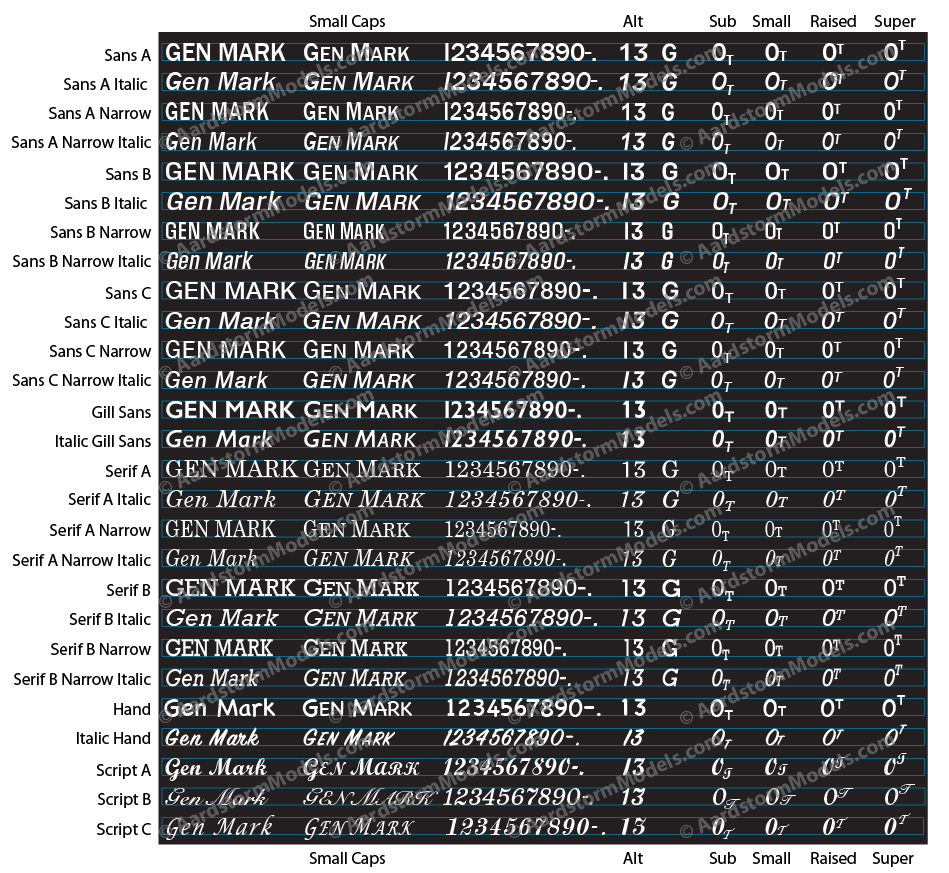
Examples of the results of these commands are shown in the fonts illustration below.
Font Modification Commands
The best way to select a font for your decal is to choose a base decal that uses the font you require. However, should you need to use a different font for part of your decal, the following commands can be used.
| !SmallCaps( = [target text]) | Specifies that the target text should be presented as small caps, that is, all uppercase with only the initial letter of each word of normal height, the remainder being of reduced size. |
| !Italic(SC)( = [target text]) | Specifies that the target text should be presented in italic form, that is, using slanted characters. If the SC is present in the command word, small caps will be used, as described above. |
| !Upright(SC)( = [target text]) | Specifies that the target text should be presented in non-italic form, that is, using upright characters. If the SC is present in the command word, small caps will be used, as described above. |
| !Font [font name]( = [target text]) | Specifies that the target text should be presented using the specified font. |
If the target text is not present, then the command applies either to only the text on the same line, if the command is at the end of a line, or to all following lines if the command is on a separate line.
The fonts available for you to use are shown in the following illustration, along with the available alternate character forms and typical results of the !Sub, !Small, !Raise, and !Super commands. Click on the image to open a larger view in a separate browser tab or window.